How to Book Your First Service on Handi
Booking your first service on Handi? Learn how to choose a provider yourself or post a task and let Handi find someone within your area.
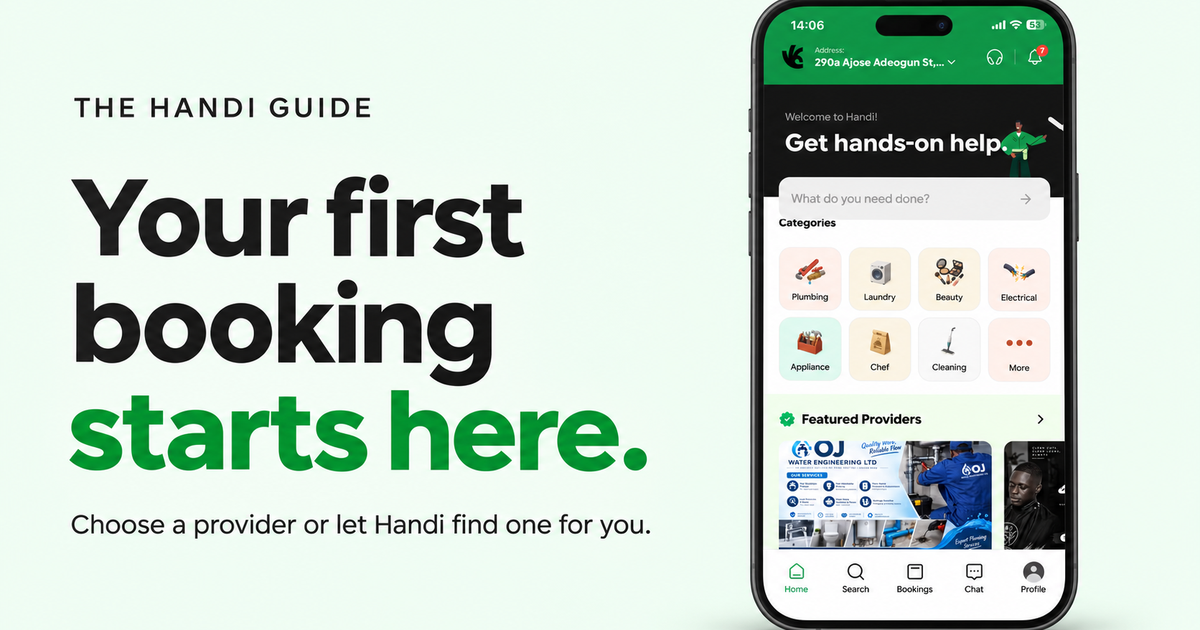
You need someone to clean your sofa, fix a leaking tap or do your makeup for an event. You know what needs to be done, but finding the person to do it is often where the effort begins.
On Handi, you can choose a service provider yourself or post a task and let Handi find someone within your area to handle it. Whichever you prefer, your booking starts with a few details about what you need, when you need it and where the service will happen.
Here’s how to get started.
First, download Handi and check your location
Download Handi from the App Store or Google Play Store. Create your account by following the registration prompts, including verifying your phone number with the code sent to you. If you already have an account, sign in.
Once you’re on the home screen, check the address at the top of the app. Your selected location determines which service providers appear when you search, so set it to the area where you need the service.
For example, if you’re at work in Victoria Island but need a cleaner for your home in Lekki, use the location where the cleaning will happen.
Two ways to book a service on Handi
The difference is who chooses the provider.
Booking optionHow it worksPost a TaskDescribe what you need, when and where you need it. Handi helps find and assign a provider within your area to handle the job.Search & SelectSearch for a service, explore providers serving your selected location, and choose someone based on their services, portfolio and ratings.
If you would like Handi to help find someone, start with Post a Task. If you prefer to look through people’s work before deciding, use Search & Select.
Option 1: Post a task and let Handi find a provider
Let’s say your living-room chairs need cleaning. You want someone who can handle the job, and you’d like Handi to help find them. Here’s how to make the request.
1. Tap “What do you need done?”
On the home screen, tap “What do you need done?” to begin.
A task is simply the job you need help with. You don’t need to know the technical name for everything involved; start with what you want done.
2. Choose the category and subcategory
The “What kind of task is it?” screen asks you to select a category, followed by a more specific subcategory.
For this example, choose Deep Cleaning / Fumigation Services, then Upholstery/rug Cleaning. This tells Handi that you need furniture or rug cleaning.
Once both fields are selected, tap Next.
3. Name your task and add useful details
On “Name your task”, enter a short title such as “Upholstery cleaning.”
The description field is optional, but it’s a useful place to explain the work. For example:
I need a three-seater sofa and two armchairs cleaned. There are stains on the seats. Please let me know whether cleaning products and equipment are included.
Use details that match your own request. The number of items, their condition and anything that needs particular attention can help the provider prepare.
You have up to 70 characters for the title and 1,000 for the description, but a few clear sentences are enough. Tap Next to continue.
4. Choose when you need it done
On “Choose a time”, select Today, Tomorrow or Select Custom Date.
Choose a date when you can make the space available. If you’re preparing for guests, for instance, allow time to discuss the cleaning and drying arrangements before their visit.
5. Choose where the service will happen
The “Say where” screen gives you two options:
- Home Service: The provider comes to the location you specify.
- Walk-in: You visit the provider’s location or store.
For the sofa-cleaning example, select Home Service. Check the address under Service Location, then tap Next.
6. Complete and submit your task
Follow the remaining prompts in the app, review your details and submit the request. Make sure the description, date and service location are correct.
Handi then helps find and assign a provider within your area to handle the job. You don’t need to browse profiles or choose the provider yourself through this route.
Option 2: Search for a provider and choose for yourself
For some services, you may want to see someone’s work before booking. Makeup is a good example: you might prefer a soft, natural finish, while another person wants a more dramatic look.
Search & Select lets you explore your options and make that choice yourself.
1. Check your location and search for the service
Confirm the address at the top of the app, then use Search to find the service or category you need—for example, makeup under Beauty.
The results show relevant providers serving your selected location.
2. Look through the providers’ profiles
Open the profiles that interest you and review their services, portfolios and ratings.
For a makeup appointment, look for examples of the kind of finish you want. Check the service descriptions too, so you understand what each provider offers before making your choice.
3. Select your provider and service
Once you find someone who suits your needs, choose their service and begin the booking.
This is the main difference from posting a task: you’ve selected the person you want to work with yourself.
4. Add your booking details
Continue through the booking prompts to explain what you need, choose when you need it and confirm where the service will happen.
For a makeup appointment, include useful details such as the occasion, your preferred look and the time you need to be ready. Choose Home Service or Walk-in, as applicable, and check the location before continuing.
Before you confirm your booking
Take a moment to review the service details and the total shown at checkout. Make sure you understand what is included, and clarify any questions through the app before paying.
A clear agreement helps both you and the provider prepare. For cleaning, that might mean confirming which furniture is covered and who supplies the equipment. For makeup, it could mean agreeing on the look and when the appointment needs to finish.
Follow the payment instructions in the app. Your payment is held securely until you confirm that the job has been completed to your satisfaction. If there’s a problem, contact Handi support for help.
Your first booking starts with what you need
You can take your time choosing a provider whose work you like, or let Handi help find someone within your area. Either way, clear details about the job help the person handling it understand what you need.
Open Handi to get started, or download it from the App Store or Google Play Store.
Everyday needs within reach.